
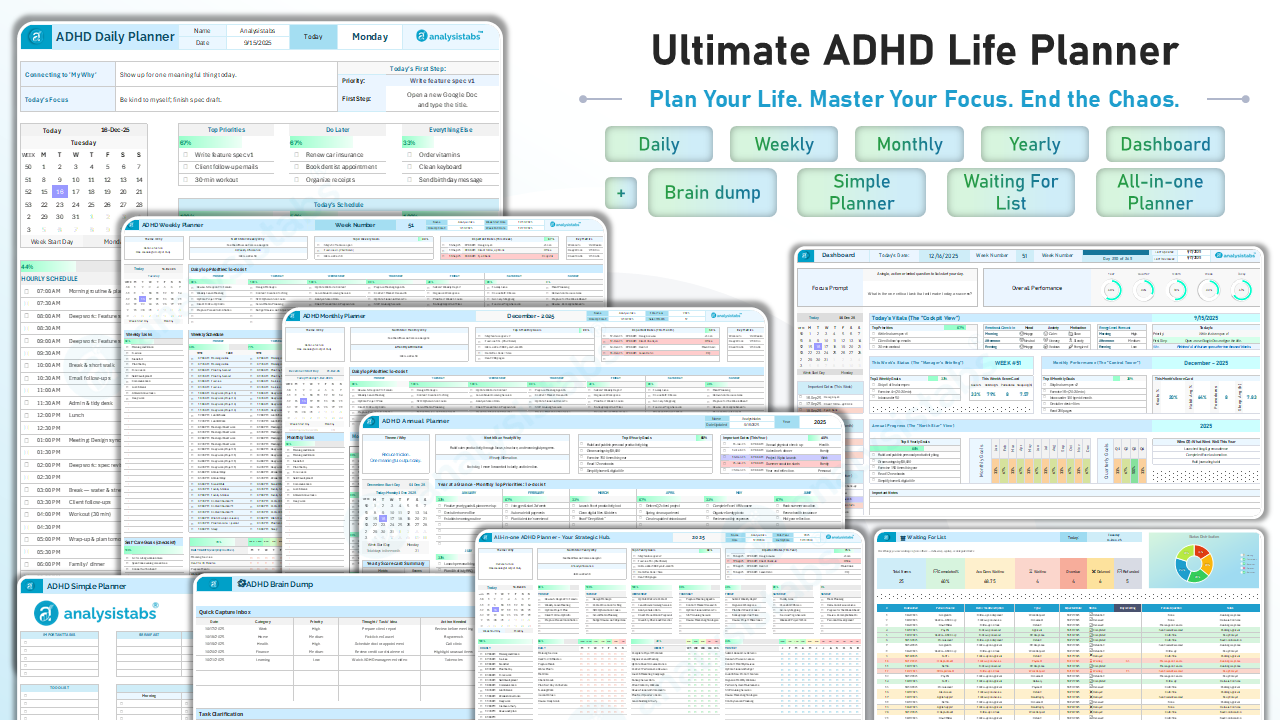
Welcome to Analysistabs® Ultimate ADHD Life Planner (Excel Template),your new external brain. This system is designed to reduce executive function friction, manage time blindness, and gamify your productivity. It uses a unique "Hub and Spoke" system where your Dashboard tracks the big picture, while your Daily Planners handle the details.
1. The Golden Rule: Edit Mode
To prevent you from accidentally breaking the automation, this workbook uses a color-coded "Edit Mode."
- 🟨 YELLOW CELLS: These are Input Fields. You can type, delete, or select from dropdowns here.
- 🟦 BLUE / ⬜ WHITE CELLS: These are Automated Fields. Do not type here! They contain formulas that calculate your progress automatically.
Pro Tip: You can toggle the visual "Edit Mode" guidelines On/Off using the checkbox on the Start Here sheet or any Planner sheet header.
2. The Dashboard (Your Mission Control)
Purpose: Check this first thing in the morning. It aggregates data from all your independent planners to show you the "Big Picture" at a glance.
- Focus Prompt: The large box at the top left is the only input here. Use it to set a single intention for the day.
- Automatic Vitals:
- Today's Score: Pulls completion rates from your Daily Planner.
- Gauges: Pulls habit and goal data from the Weekly, Monthly, and Annual Planners.
- Upcoming Dates: The sidebar automatically lists active deadlines from your Monthly and Annual sheets, so you never miss a "future" event.
3. Daily Planner (The Micro-Focus Engine)
Purpose: Win the day. This sheet manages your energy, not just your time. It is designed to prevent the "morning panic" and the "afternoon crash."
Morning Grounding (Header)
Before you start working, fill out these top fields to anchor your brain:
- Connecting to "My Why": Write one sentence about why today matters.
- Today's Focus: Choose a theme (e.g., "Deep Work" or "Admin Catch-up").
- First Step: Identify the tiniest possible step to start your first task (e.g., "Open the file").
The Hourly Schedule (Left Sidebar)
Fight Time Blindness: The yellow sidebar runs from 07:00 AM to 10:00 PM. Use this to "Time Box" your day. Don't list tasks; list time blocks (e.g., "9am-11am: Project Alpha").
Task Triage (Center)
Avoid the "Wall of Text." Tasks are split into three clear buckets:
- Top Priorities: Maximum 3 items. These are non-negotiable.
- Do Later: Important, but can wait for the afternoon slump.
- Everything Else: Low-energy chores or admin.
Note: The green bars above these lists visualize your progress automatically.
Bio-Regulation & Routine Blocks
Unique to this planner, these sections track your physical needs:
- Today's Schedule (Routines): Checklists for Morning, Afternoon, and Evening phases to keep you on track without rigid times.
- Daily Self-Care: A menu of dopamine boosters (e.g., "Walk outside," "Meditate").
- Meals: Checkboxes for Breakfast, Lunch, Dinner, and Snacks.
Emotional & Energy Tracking (Bottom)
- Emotional Check-in: Log your Mood, Anxiety, and Motivation levels 3x a day to spot burnout patterns.
- Energy Level Forecast: Predict your energy (High/Med/Low) to set realistic expectations.
4. Weekly Planner (The Manager's Briefing)
Purpose: Zoom out. Manage deliverables and logistics across 7 days.
Weekly Strategy (Header)
- North Star / Weekly Why: Set a weekly affirmation or intention.
- Top 3 Weekly Goals: The three big outcomes you need by Sunday.
- Important Dates: A manual space to list hard deadlines for this specific week.
Weekly Schedule & Tasks (Center)
- Daily Top Priorities: A horizontal view to assign one "Main Event" to each day of the week.
- Weekly Schedule Grid: A visual time-blocker for Monday-Sunday. Use this to spot overbooked days before they happen.
- Weekly Tasks Sidebar: A "holding pen" for tasks that need to be done this week but don't have a specific day yet.
Logistics & Health (Bottom)
- Weekly Meal Plan: A dedicated grid to plan Breakfast, Lunch, Dinner, and Snacks for every day. Reducing food decisions reduces anxiety.
- Self-Care & Sleep: Track your weekly sleep hours and self-care consistency.
Weekly Score Card (Footer)
See your stats: Goals Completed %, Habit Average %, and Average Sleep. Use the "Weekly Review" text box to capture lessons learned.
5. Monthly Planner (The Control Tower)
Purpose: Build consistency. This sheet focuses on Habits and Monthly Milestones.
The Habit Matrix (The Engine)
Located at the bottom, this is the most powerful tool for consistency:
- Habit Grid (Days 1-31): List your core habits on the left (e.g., "Read 10 mins"). Check the box for each day you complete it.
- Visual Streaks: Seeing the chain of checked boxes provides a dopamine reward to keep going.
Monthly Calendar & Priorities
- Monthly Calendar: Not for appointments, but for Priorities. Assign the "Big Rock" task for each day of the month here.
- Monthly Tasks Sidebar: A master list of things to do "sometime in [Month Name]."
Score Card
Your Monthly Score Card aggregates your Habit Consistency % and Goal Completion % automatically.
6. Annual Planner (The North Star)
Purpose: Long-term vision and Quarterly Planning. Use this for high-level reviews.
Important Dates (The Dashboard Feed)
Critical Section: The "Important Dates (This Year)" list in the top right corner.
- Auto-Sync: Any date, birthday, or deadline you type here will automatically appear on your Dashboard when the date approaches. You never need to copy it twice.
Year at a Glance
A heat map of your year. List the top 3-5 major priorities for each month (e.g., "January: Launch Website").
Quarterly Goals (Q1 - Q4)
ADHD brains struggle with 12-month goals. Use this section to break yearly goals into 3-month sprints (Q1, Q2, Q3, Q4).
Yearly Review
At the end of the year, use the footer to document "What Went Well" and "Lessons Learned" to carry forward into the next year.
7. The Support Toolbox (Independent Sheets)
These tools are standalone "Safe Spaces." They are perfect for low-energy days or organizing mental clutter.
A. Simple Planner (The Fail-Safe)
Use When: You feel overwhelmed or low-energy. It strips away the complex metrics of the Daily Planner.
- Simplified Layout: Focuses only on "Important Tasks," "Meals," and "Routines".
- Simplified Schedule: A basic sidebar to note appointments without the pressure of "Time Boxing."
- No Guilt: Using this sheet does not negatively impact your Dashboard scores.
B. Brain Dump (Clear Your Mind)
Use When: Your brain feels "noisy" or cluttered.
- Quick Capture Inbox: Rapidly type random thoughts here (Date, Category, Thought). Don't process them yet—just get them out of your head.
- Task Clarification: When you are ready, move items here to assign deadlines and priority.
- Archive: Move finished items to the bottom to keep your active list clean.
C. Waiting For List (Close Open Loops)
Use When: You have delegated a task or are waiting for a delivery.
- Status Tracking: Log the item and use the yellow "Status" dropdown (e.g., "Waiting," "Overdue," "Received").
- Auto-Calculation: The "Days Waiting" column is white/blue because it automatically counts how long you've been waiting.
- Visual Stats: The charts at the top show you exactly how many items are overdue or delayed.
D. All-in-One Planner (The Strategic Hub)
Use When: You need a "Deep Dive" review (e.g., Sunday Planning).
- The Monster View: This sheet aggregates your Daily, Weekly, Monthly, and Yearly goals into one dense screen.
- Strategic Review: It is ideal for cross-referencing your plans to ensure your Daily actions align with your Yearly goals.
8. Navigation & Accessibility
This workbook is designed to feel like an app, not a spreadsheet. You do not need to hunt through tiny tabs at the bottom of the screen.
The Top Navigation Bar
Every single sheet in the workbook features a Menu Bar at the very top of the screen.
- Instant Jumping: You can switch from your Daily Planner directly to your Brain Dump or Dashboard with one click.
- The "Start Here" Button: The first button on the left always takes you back to the main menu and settings page.
- Color Coding: The buttons are color-coded to match the sheet types (e.g., Purple for "All-in-One," Blue for Planners).
The "Start Here" Sheet (Settings)
Think of this as your Home Screen. It contains:
- Edit Mode Toggle: A checkbox to turn the yellow "Input Guidelines" On or Off.
- Master Navigation: Large descriptions and buttons for every tool in the system, perfect for learning what each sheet does.