
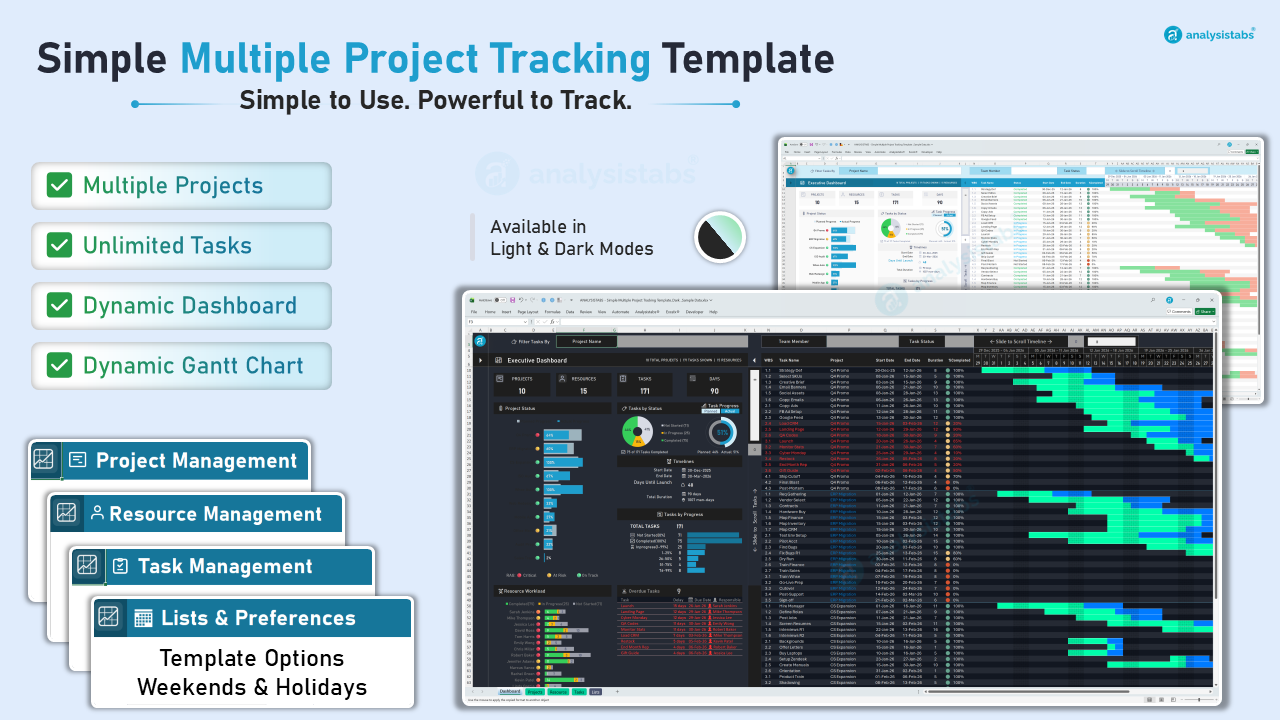
How to Use the Analysistabs® Simple Multiple Project Tracking Template
Welcome to the official documentation for the Analysistabs® Simple Multiple Project Tracking Template. This premium tool is a 100% VBA-free Excel solution designed to give you a professional, app-like experience for managing your entire project portfolio without security warnings or macros.
1. Initial Setup & Preferences
The foundation of your tracking logic starts in the Lists sheet. Setting this up correctly ensures all automated calculations on the dashboard are accurate.
-
Set Your Weekends
Use the checkboxes to define which days your team is offline. The Gantt chart will automatically adjust based on these selections.
-
Enter Official Holidays
List your company's holiday dates in the provided table. This ensures your project durations are calculated using actual working days.
-
Gantt Chart Preferences
Use the toggle switches to customize your view—options include highlighting today's date, weekends, or overdue tasks.
2. Team & Project Entry
Before tracking tasks, you must define who is doing the work and which projects they belong to.
-
Resource Management
In the Resource sheet, enter your team members' names and unique Employee IDs. This data feeds the Resource Workload chart on your dashboard.
-
Project Registry
Use the Projects sheet to list all active projects and their IDs. You can also use the Custom Columns to track extra metadata like "Department" or "Priority".
3. Task Management
The Tasks sheet is where you will spend most of your time updating progress.
-
Assign Work
Select a Project and a Team Member for each task using the dropdowns.
-
Schedule
Enter the Start Date and the Days Required. The template will automatically calculate the end dates based on your holiday and weekend settings.
-
Track Progress
Update the Status (Not Started, In Progress, Completed) and the Progress %. Active "In Progress" tasks are automatically highlighted for easy visibility.
4. Navigating the Executive Dashboard
The dashboard is fully automated and serves as your visual command center.
-
KPI Navigation
The KPI cards at the top (Projects, Resources, Tasks, Days) are clickable. Clicking one will take you directly to the corresponding data sheet for deep-dive editing.
-
Home Shortcut
Every sheet features a Dashboard Icon in cell A1. Click this at any time to return instantly to the main dashboard.
-
Advanced Filtering
Use the filter bars at the top to drill down into specific data by Project Name, Team Member, or Task Status.
-
Dynamic Gantt Column
The 3rd column of the Gantt chart task list features a dropdown menu. You can choose to display Resource, Project, or Status directly in the view.
-
Interactive Timeline & Scrolling
Use the Slide to Scroll Timeline controls at the top right to shift date ranges, and the vertical scroll bar to move through long task lists without losing your KPI view.
5. Switching Themes
This template includes both Light and Dark modes to suit your preference.
-
Light Mode
Best for printing and standard office environments.
-
Dark Mode
Ideal for high-contrast viewing and reducing eye strain during long tracking sessions.