
🏋️ The Ultimate Workout Planner - User Guide
Introduction
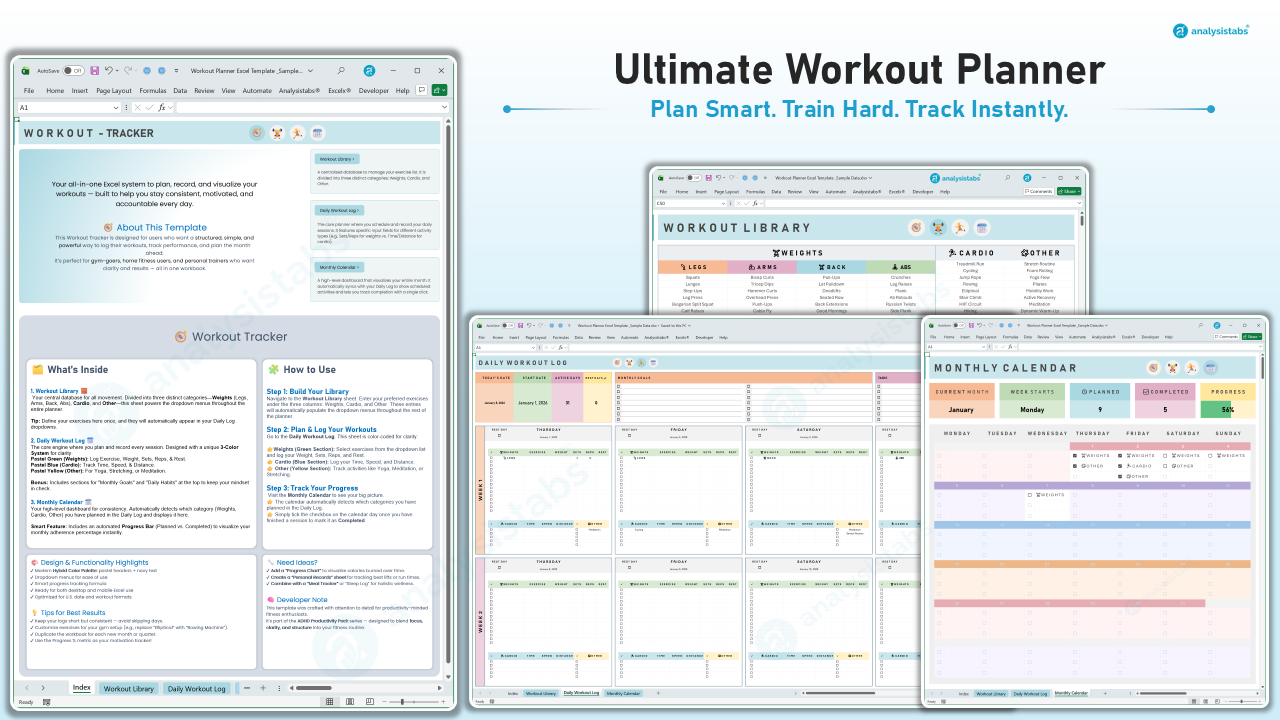
Welcome to Analysistabs® Workout Tracker, your new fitness command center! This isn't just a spreadsheet—it’s a comprehensive fitness system designed to look and feel like a modern app.
It is built to help you plan your routine, log your detailed stats, and visualize your consistency without the clutter.
1. Getting Started (The Setup)
Go to the "Workout Library" tab first.
This is your personal database. You only need to set this up once.
- Define Your Exercises: List your preferred movements in the columns provided.
- Weights: Categorized by muscle group (Legs, Arms, Back, Abs).
- Cardio: Activities like Running, Cycling, or Rowing.
- Other: Wellness activities like Yoga, Stretching, or Meditation.
- Why this matters: Everything you type here will automatically populate the dropdown menus in your Daily Log. This ensures your data is clean and consistent.
2. Planning & Logging Your Workouts
Go to the "Daily Workout Log" tab.
This is the "Engine" of the planner where you spend your daily training time. It features a smart 3-Color System for clarity:
- Set Your Intention: At the top of the sheet, fill in your "Monthly Goals" and track "Daily Habits" (like water intake or sleep).
- The Green Section (Weights):
- Select an exercise from the dropdown.
- Log your Weight, Sets, Reps, and Rest.
- The Blue Section (Cardio):
- Designed for endurance tracking. Log your Time, Speed, and Distance.
- The Yellow Section (Other):
- Use this for flexibility or mental wellness routines.
3. The Monthly Dashboard
Go to the "Monthly Calendar" tab.
Visualize your consistency at a glance.
- Automated Sync: You do not need to type exercise names here. The calendar automatically detects if you planned a "Weight," "Cardio," or "Other" session in the Daily Log and displays it for you.
- Track Completion:
- Once you finish a workout, click the checkbox (☑) inside the calendar day.
- This serves as your "Streak Keeper" to keep you motivated.
- Progress Metrics: Check the dashboard header:
- Planned vs. Completed: See exactly how many sessions you scheduled vs. how many you crushed.
- Progress Bar: A live percentage (e.g., 22%) showing your adherence for the month.
4. Navigation & Design
Enjoy the "App-Like" Experience.
- Quick Navigation: Use the large pill-shaped buttons at the top of the Index sheet to jump between views instantly.
- Clean Interface: Gridlines are hidden to reduce eye strain, and columns are visually grouped to make scanning your data easier on laptop screens.
Troubleshooting & Tips
- How do I start a new month?
- Save this file as a "Master Template."
- For every new month, simply duplicate the file and rename it (e.g., "Workout Planner - February"). This keeps your history separate and the file speed fast.
- Why isn't my exercise showing in the dropdown?
- Go back to the "Workout Library" and ensure the exercise is written correctly in the list. The dropdowns update instantly.
- Can I use this on mobile?
- Yes! Download the Excel App on your phone. While the desktop view is best for planning, the dropdowns and checkboxes work perfectly on mobile for logging while at the gym.
Get Stronger. Stay Consistent.
Plan your work, then work your plan.