
🥗 The Ultimate Weekly Meal Planner - User Guide
Introduction
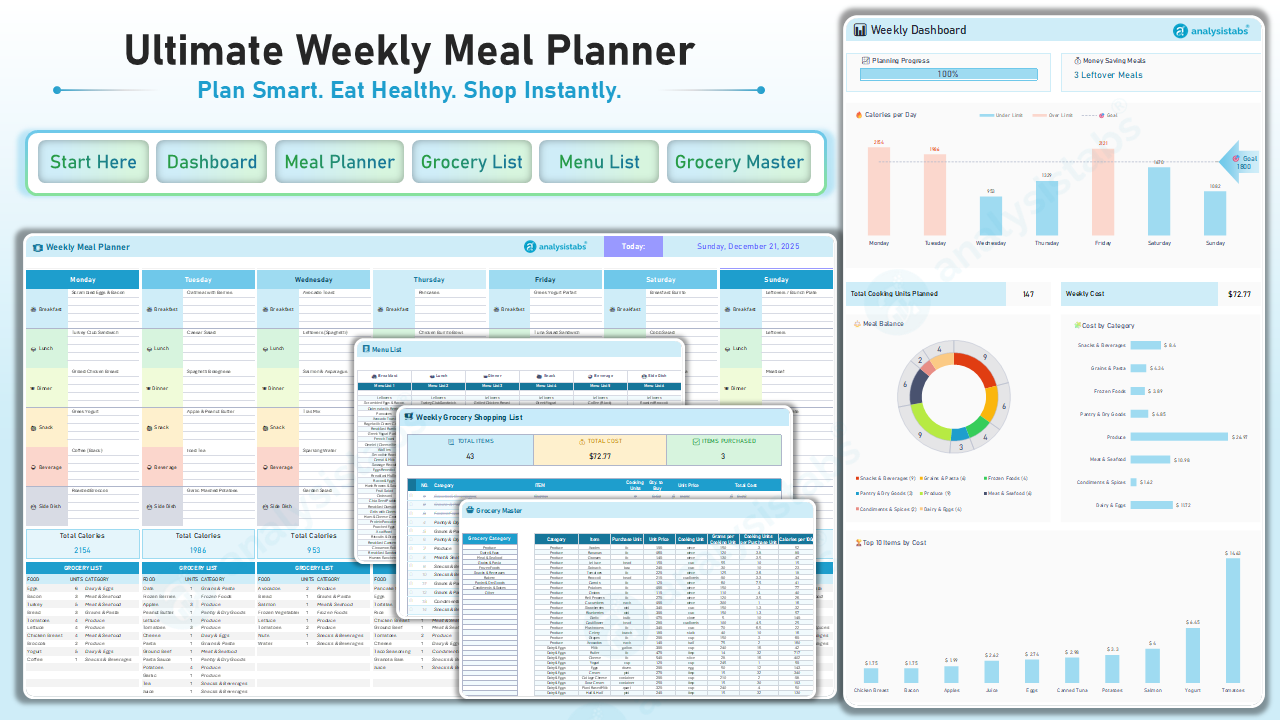
Welcome to the Ultimate Weekly Meal Planner! This isn't just a calendar—it's a smart database that automatically calculates your grocery list, estimates your weekly costs, and tracks your daily calories.
It is designed to save you time, money, and food waste by helping you plan exactly what you need to buy.
1. Getting Started (The Setup)
Go to the "Start Here" tab first.
This is your control center. Set it up once, and the rest of the workbook updates automatically.
- Enter Your Currency: Select your currency symbol (e.g., $, €, £) from the dropdown. This will update all cost estimates across the workbook.
- Set Daily Calorie Goal: Enter your target daily calorie limit (e.g., 2000). This powers the "Calories per Day" chart on the Dashboard.
- Editable Mode (ON/OFF):
- Checked (☑): Highlights all cells you are supposed to type in with Yellow. This is great for new users to know exactly where to click.
- Unchecked (☐): Turns off the yellow highlights for a clean, professional look once you are done editing.
2. Planning Your Meals
Go to the "Meal Planner" tab.
This is where you will spend most of your time.
- Select Your Meals: Use the dropdown menus for each day (Breakfast, Lunch, Dinner, Snack, Beverage, Side Dish).
- Smart "Leftover" Logic: If you plan to eat leftovers (e.g., "Leftovers (Spaghetti)"), select that option. The planner is smart enough not to add ingredients to your grocery list for that meal, saving you money.
- Instant Feedback:
- Total Calories: Check the blue bar at the bottom of each day column to see if you are hitting your nutritional goals.
- Daily Grocery Preview: Look below the calorie bar to see exactly what ingredients are needed for that specific day.
3. The Weekly Dashboard
Go to the "Dashboard" tab.
See your week at a glance.
- Planning Progress: Shows how much of your week is planned (0-100%).
- Money Saving Meals: Tracks how many times you chose "Leftovers," helping you reduce waste.
- Calories per Day: A dynamic chart comparing your planned calories against your goal.
- Blue Bar: You are under your calorie limit.
- Red Bar: You have exceeded your daily limit.
- Weekly Cost: An estimated total of your grocery trip based on the ingredients required.
- Top 10 Items by Cost: See exactly which ingredients are eating up your budget (e.g., Salmon, Steak).
4. Your Grocery List
Go to the "Grocery List" tab.
Your automated shopping companion.
- Total Items & Cost: See a summary at the top before you head to the store.
- Interactive Checklist:
- To Buy: Items appear in a clean list.
- Purchased: Click the checkbox (☑) next to an item once you put it in your cart. The item will turn grey with a strikethrough, and the "Items Purchased" counter at the top will update.
5. Advanced Customization (Optional)
For power users who want to add their own recipes.
Menu List (The "Menu")
- This is where you define the meal names that appear in the dropdowns (e.g., "Pancakes", "Beef Tacos").
- You can rename existing meals or add new ones here.
Grocery Master (The "Brain")
- Crucial Step: If you add a NEW meal name in the "Menu List", you must add the ingredients for it here.
- Columns:
- Category/Item: The food name (e.g., Eggs).
- Purchase Unit: How you buy it (e.g., Dozen).
- Cooking Unit: How you use it in a recipe (e.g., Piece).
- Unit Price: Update this to match your local store prices for accurate cost estimates.
- Calories: Update this for accurate nutritional tracking.
Troubleshooting & Tips
- Why is my Grocery List empty?
- Ensure you have selected meals in the "Meal Planner" tab.
- Ensure those meals have ingredients listed in the "Grocery Master" tab.
- Why are the costs wrong?
- Prices vary by location. Go to the "Grocery Master" tab and update the
Unit Pricecolumn to match your local store.
- Prices vary by location. Go to the "Grocery Master" tab and update the
- How do I print the list?
- Go to the "Grocery List" tab. Press
Ctrl + P(or Cmd + P). The sheet is pre-formatted to fit perfectly on a standard page or save as a PDF for your phone.
- Go to the "Grocery List" tab. Press
Thank you for using the Ultimate Meal Planner!
Simplify your shopping. Eat healthier. Save money.