
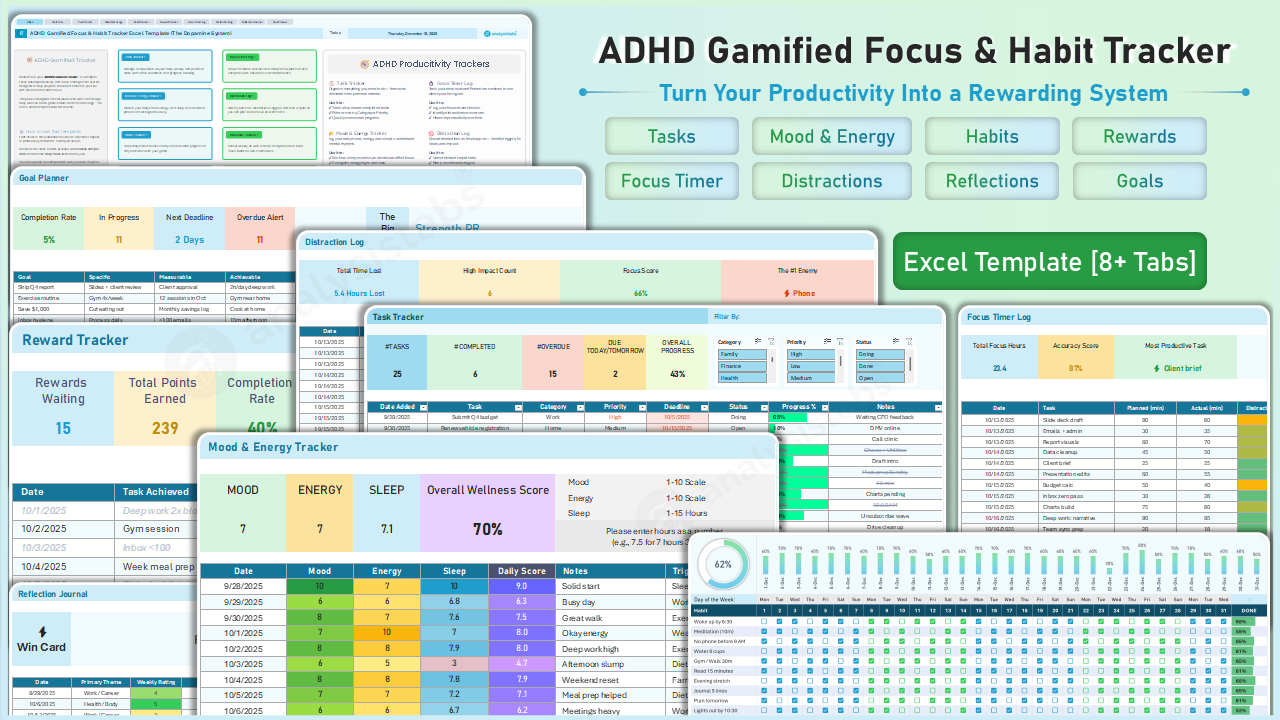
User Guide: The Gamified Focus & Habit System
Turn Your Productivity Into a Rewarding System.
Welcome to Analysistabs® ADHD Gamified Focus & Habit Tracker Excel Template. This Excel System is designed to support your executive function by assigning value to tasks and tracking your focus visually. It uses Behavioral Science Principles (Points, Progress Bars, Rewards) and CBT (Cognitive Behavioral Therapy) techniques to help you initiate tasks and stay consistent.
🚀 Quick Start: The Setup
1. Start Here (System Configuration)
This is your "Settings Menu" and the first sheet you should touch.
- Enable Edit Mode: Check the box labeled "Editable Mode (ON/OFF)". All input cells will turn YELLOW, showing you exactly where to type.
- Customize Lists:
- Rewards: Enter items you actually want (e.g., "Order Pizza") and their point cost.
- Categories: Update "Work/Home/Finance" to match your specific life needs.
- Triggers: Define your personal distraction triggers (e.g., "Phone," "Hunger").
📝 The Foundation Trackers
2. Task Tracker ( The Brain Dump)
Goal: Reduce overwhelm by capturing open loops.
- Capture: Use this sheet to dump every "To-Do" floating in your head. Do not organize yet; just get it out of your brain.
- Categorize: Use the dropdowns to assign a Category (Work, Home) and Priority (High, Medium, Low).
- Status: Mark items as "Done" to clear them. This list feeds into your mental clarity, allowing you to focus on the Gamified Engines below.
3. Mood & Energy Tracker (Bio-Regulation)
Goal: Identify burnout patterns before they happen.
- Log Daily: Select your Mood (Happy, Anxious, Tired) and Energy Level (1-10) from the dropdowns.
- Identify Triggers: Use the "Trigger" column to note what influenced your mood (e.g., "Poor Sleep," "Conflict," "Exercise").
- Pattern Recognition: Over time, use this data to see which activities drain you and which energize you.
4. Habit Tracker (The Streak Builder)
Goal: Build consistency without perfectionism.
- Setup: List 3-5 daily habits you want to build (e.g., "Drink Water," "Read 10 mins").
- Track: Check the box for each day you complete the habit.
- Visual Streaks: The sheet automatically calculates your Current Streak and Completion %. Watch the progress bars grow to maintain momentum.
📊 The Gamified Engines
5. Reward Tracker (The Economy)
Goal: Earn points to redeem for guilt-free rewards.
- Earn Points: Log completed tasks in the Task Log and assign them a point value (1-20).
- The Bank: Watch your "Rewards Waiting" balance grow at the top.
- Redeem: When you have enough points, select a reward from your shop and mark it as Redeemed? = Yes. This deducts the points from your bank.
6. Focus Timer Log (The Tomato Tool)
Goal: Beat "Time Blindness" and visualize effort.
- Plan: Enter a task and your Planned Time (e.g., 60 mins).
- Log: After working, enter your Actual Time.
- Feedback:
- Tomatoes: The sheet draws 🍅 icons (1 per 25 mins) to visualize your effort.
- Variance: Red cells indicate underestimation; Green cells indicate efficiency. Use this to improve your future planning.
7. Distraction Log (The Diagnostic)
Goal: Identify exactly what is killing your focus.
- Log It: Keep this open while working. Every time you lose focus, log the Trigger (e.g., Phone) and Impact (High/Low).
- The Dashboard: The top banner automatically calculates your "#1 Enemy" and "Total Time Lost" so you know what to eliminate.
8. Reflection Journal (The Win Jar)
Goal: Fight negativity bias by remembering wins.
- Weekly Log: Rate your week (1-5 stars) and note "What Went Well."
- The Win Jar: The large yellow box at the top randomly pulls a past success from your logs. Press F9 to shuffle memories for an instant motivation boost.
9. Goal Planner (The Roadmap)
Goal: Visualize progress on long-term projects.
- Define: Enter your SMART goals (Specific, Measurable, Achievable, Relevant, Time-Bound).
- Track: Update the Progress % (0-100).
- Visuals: Watch the Blue Progress Bars fill up as you get closer to completion. The Status column turns Green when finished.
Need Help?
Contact us at support@analysistabs.com for any technical questions.
Happy Tracking!