
Overview of the Advanced Project Plan and Portfolio Template
Download the Template:
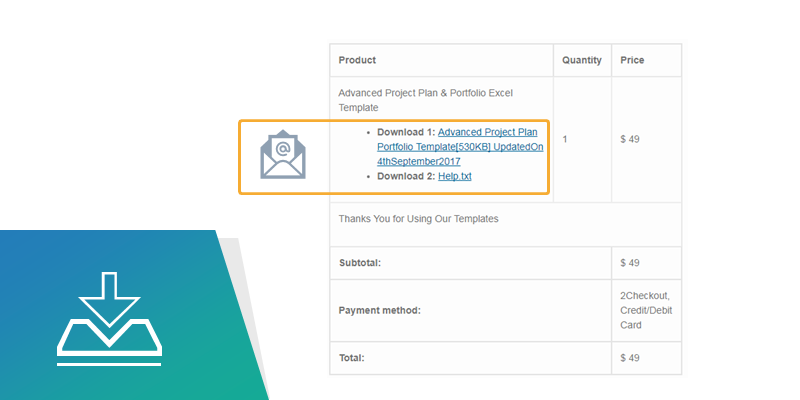
Instant Download:
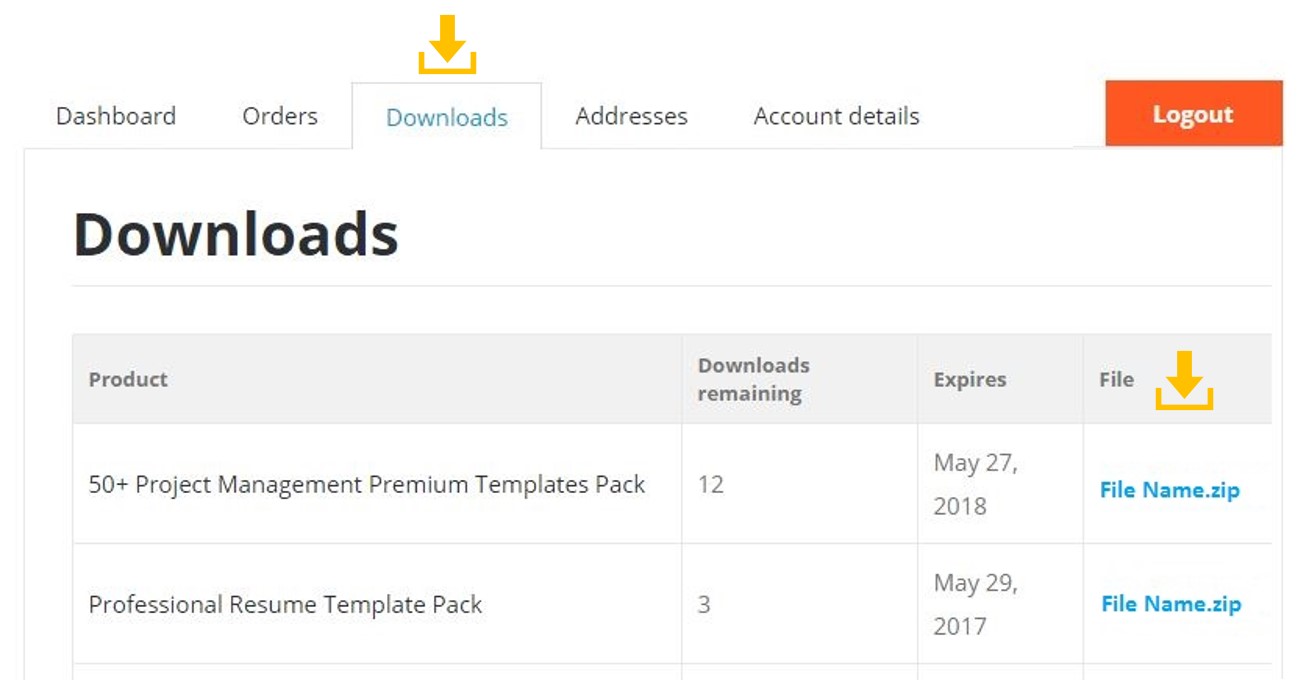
Download from My Account
Your account will be created in couple of minutes. You will receive your username and password of your account at Analysistabs. You can sign in to the download the files any time in one year from date of purchase.
Save and Open the Template:
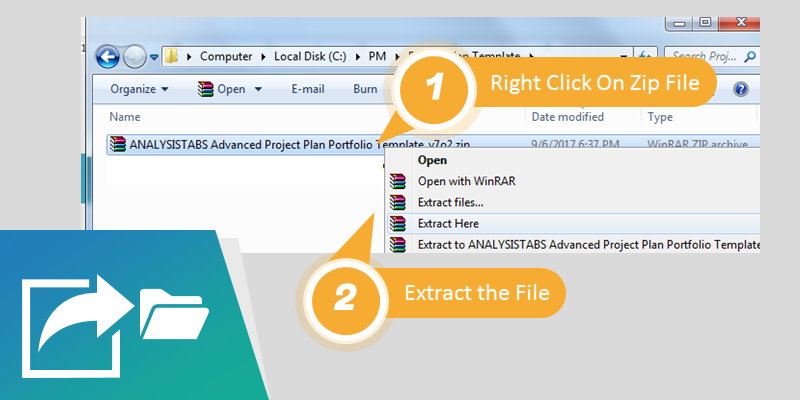
Save the File in your Local Folder
You can extract the template in the downloaded zip file into your local folder (preferably in your documents folder) and Save with the desired name.
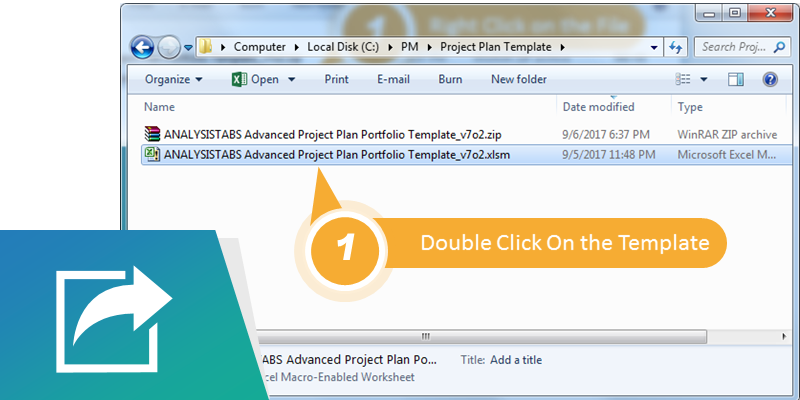
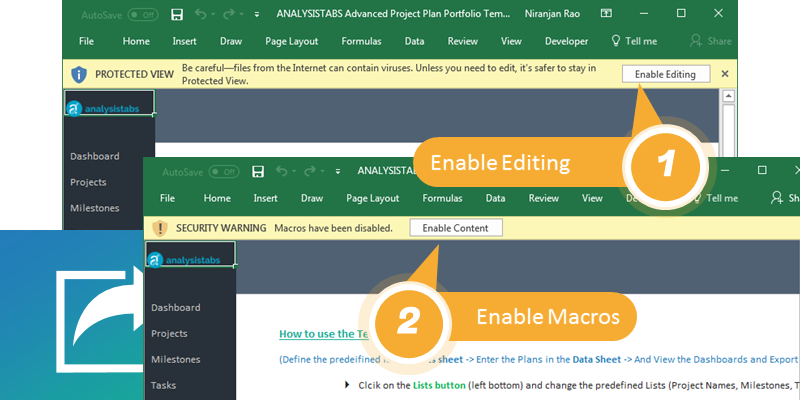
Open the Template
You can double click on the file to open the template in Excel.
You will see the Help section in the Template Sheet, you can follow the instructions and start using the template.
Worksheets in the Template
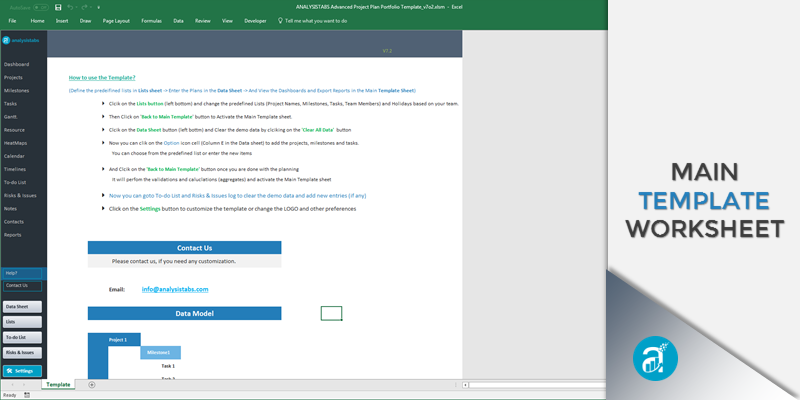
There are 7 different worksheets in the template.
Sheet 1: Template
: This is the main template where you can see all the dashboards to analyze your project plans, resources and timelines.
- We have provided the buttons to navigate to different sheets in the template.
- We have provided different sections in this template to analyze all aspects of your projects (i.e; Dashboards, Projects, Milestones, Tasks, Gant Chart, Resource, HeatMaps, Calendar, Timelines, To-do Lists, Risks & Issues, Notes, Contacts and Reports)
- We have provided the tools to export your plans into Excel or PowerPoint.
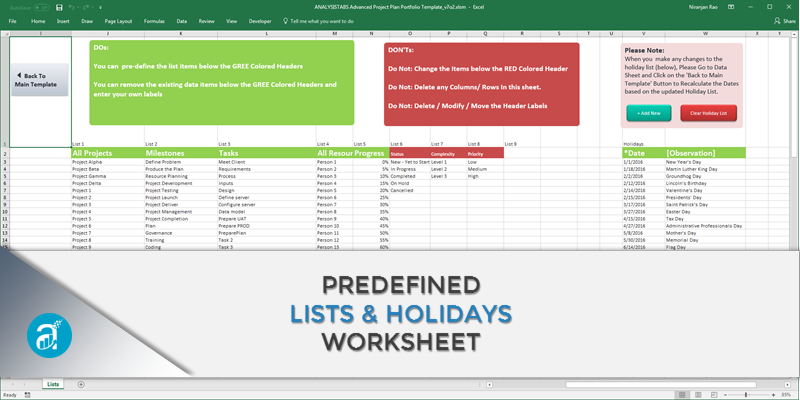
Sheet 2: Lists
: You can list all your project names, team members, milestones and common tasks. It helps you to avoid the manual entry of your tasks in the data sheet. These lists available in as drop-down lists in your data sheets. So that you can quickly choose a name while planning your tasks.
- You can predefine the below lists in the List Sheet
- Projects, Milestones, Tasks, Resources, Progress%
- You can also define the list of company holidays here
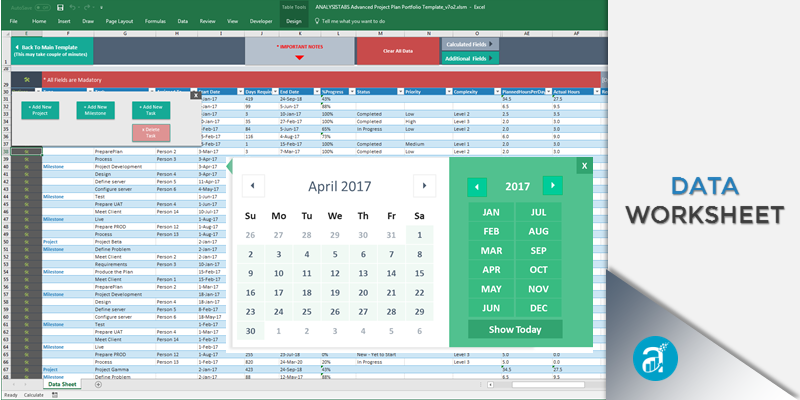
Sheet 3: Data Sheet
: This is the worksheet where you will capture all your plans.
- You can add multiple projects
- You can have multiple milestones under each project
- You can have multiple tasks under each milestone
- You can assign the task, you can set the start date and end date of the task
- You can choose status, priority and complexity of the tasks
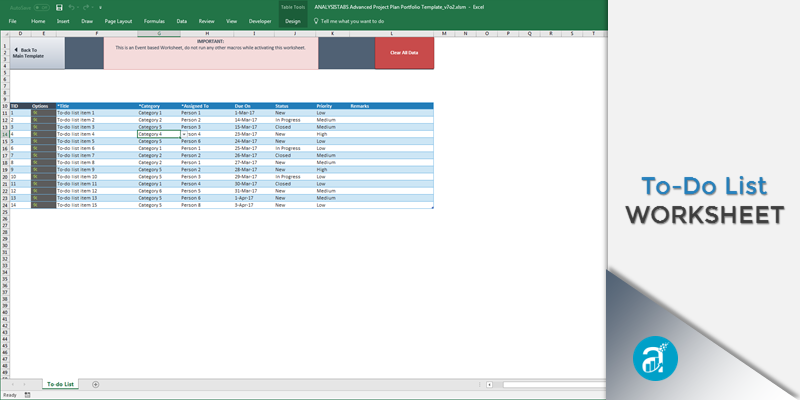
Sheet 4: To-do List
Helps you to enter and track all your to-do activities. They may be related to your projects, team bonding activities, meetings or your personal to-dos.
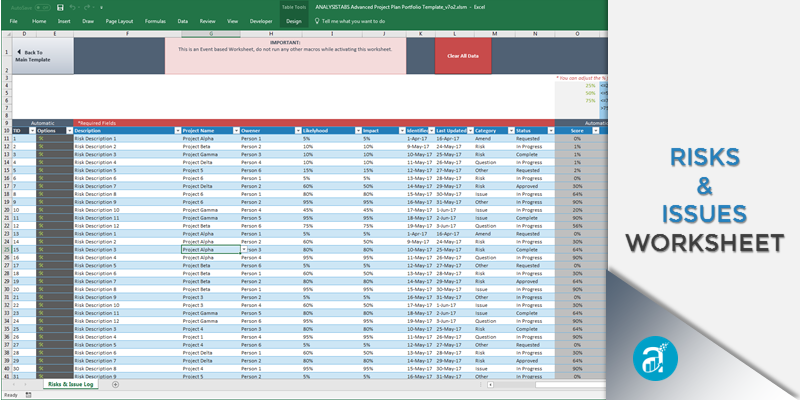
Sheet 5: Risks & Issues
You can capture the project Risks and Issues in this worksheet. You can capture the Reasons, Effects, Strategies and Likelihood + Impact Scores.
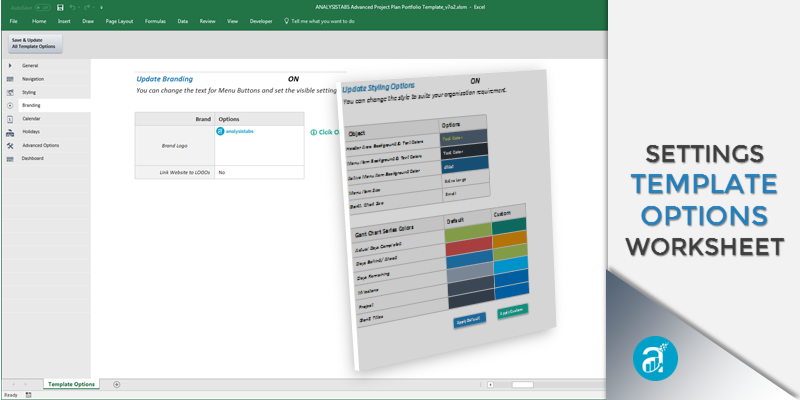
Sheet 6: Template Settings
We have provided a separate worksheet (Template Options) to change the default settings and preferences of the template.
- You can change the LOGO
- You can change the Template Colors
- You can change the Gantt Chart Colors
- You can change the Dashboard Preferences, etc.…
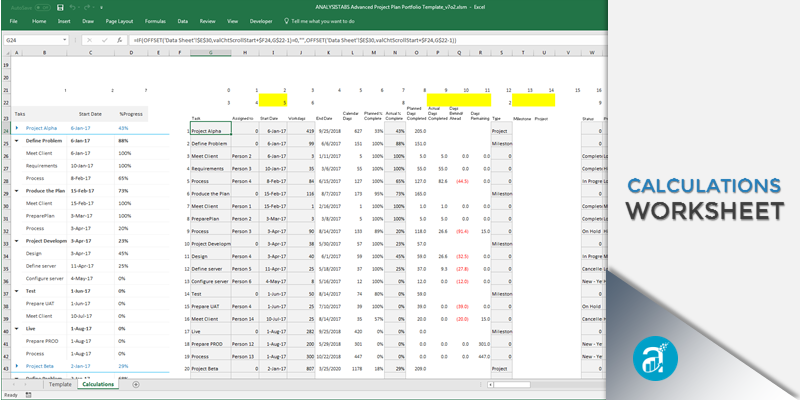
Sheet 7: Calculations Worksheets:
You can unhide the calculations worksheet (form settings) and you can view all the formulas to perform different calculations.
Creating Predefined Lists:
Click on the Lists button to view the Lists sheet. Clear the existing lists and add your data.
You can also define your company holidays in this sheet. So that you can ignore the holidays while planning your tasks.
Customize Template
You can customize the template to suit your needs. Click on the Settings button in the main template to view the Template Options Sheet. And change the required information, set your preferences and save the Template.
Planning Your Tasks, Milestones and Projects
Now you are all set to create new projects and add your milestones and tasks. Click on the ‘Data Sheet’ button in the main template to view the Data sheet and add your plans.
Project To-dos, Risks & Issues
You can click on the To-do list or Risks and Issues button. Clear the default data and add your items.
Dashboards and Reports
Now you can view your Template (Main Sheet), and view the different dashboards in the template. We have different section in this template. You can click on the left side bar to navigate each section.
Let us see each section in the Main Template Sheet.
- Dashboard: Helps to understand high level metrics of the projects, milestones and tasks.
Here you can see the Total Tasks, Tasks in Progress, Overdue Tasks, Team Work load, Tasks by Month, Status, Priority and Complexity.
- Projects Section: Her you can see the important KPIs by each Project.
- Milestones Section: Here you can see the important KPIs by Milestones of each Project
- Tasks Section: Helps you to understand the Overall Tasks, Tasks and High Priority Tasks in Progress, Due this Week, Due Next Week and Upcoming Tasks by Due Date.
- Gantt Chart Section: Advanced Gantt View of the Projects with lot of features. You can view Gantt with different combinations.
- Daily, Weekly, Monthly, Quarterly and Yearly.
- You can scroll down-up, left-right
- You can zoom in-out
- You can choose the different fields to show on the Gantt.
- You can show/hide Project Headings and Titles on the Gantt.
- You can change the Gantt colors from Settings
- Resource Section: Helps you to quickly understand the Projects and Tasks by each Resource of your Project.
- HeatMaps Section: HeatMaps Options helps you to understand how your team is loaded in a calendar year.
- Calendar Section: Helps you to View the Projects Due in a calendar Month.
- Timelines Section: Helps you to view your tasks and in the timeline chart.
- To-do List: You can see status of your to-do activities which are not including in your project plans.
- Risks & Issues Section: You can see status of the Risks and powerful and easy to adjust Risk Matrix
- Notes and Contact Sections are the blanks sections to capture important notes and contacts of your projects.
- Reports: You can export the Template Sections to share your plans with others in Excel and PowerPoint. We have provided different options to customize and control the exporting sections.
Buttons:
- Data Sheet: Data Entry sheet to Enter Your Plans.
- Lists: You can predefine your projects, Milestones, Tasks and Company Holidays in this Sheet.
- To-do List: You can list the important to-do things which are generally not included in the Project Plans.
- Risks & Issues: Log to capture the Project Risks and Issues by category.
- Settings: You can customize the template to suit your needs. You can change Logo, Colors and Many more options given to customize the template.