


Zero-Based Budget Excel Template
Income minus every allocation equals zero — this template makes the rule visible. Assign every dollar for twelve months on one Year Planner, log spending as it happens, and watch “Left to assign” hit zero every month on a live dashboard, with unspent money carried forward automatically.
Budget & Finance · Personal budgeting
What’s inside
two sheets you fill in, two dashboards that build themselves
Zero-based budgeting has one rule: income minus every allocation equals zero. This template makes the rule visible — a Year Planner with a live Left-to-assign row, a transaction log, and monthly and yearly dashboards that keep score.


How it works
What makes it different

Left to assign — the rule, made visible
Income minus every allocation, for every month, on one row. Green means zero — every unit of income has a job. Amber means money is still unassigned; red means you have over-assigned. The same figure sits as the first tile on the Monthly Dashboard, so the month’s most important number is never more than one glance away.
Carry-forward, insights and a health check
Unspent money rolls into next month’s Carry-in for that category automatically (over-spends carry as negatives), so a good month helps the next one. Below the charts: section tables with % used bars, plain-English insights, a five-point health check, an Assignment check card — most over-spent, categories with no job, what to watch — and a tick-off zero-based checklist.


Twelve months at a glance
- Yearly Dashboard: every month side by side with income, allocated, spent, carry-forward and a balanced / not balanced status
- Group totals, spending-by-group trend chart and year insights
- Start the year in any month — set it once in Setup and the twelve columns follow
Your currency, your screen, your printer
49 currencies plus a custom symbol — and the wording follows the currency (“every euro a job”). Edit mode highlights every input, Print mode strips colour for paper (Monthly prints portrait, Yearly landscape, one Letter page each), Dark mode is easy on the eyes for an evening review.

Specifications
Everything you need to know before you buy.
| You receive | Two Excel files: Sample Data (full 2026 plan and transactions January–March) and Blank (starter categories, one example row per section, six example transactions). Download link by email immediately after payment. |
| File format | .xlsx (Excel). Instructions sheet included in the workbook |
| Works with | Excel 2016, 2019, 2021, 2024 and Microsoft 365 on Windows and Mac; Excel for the Web for viewing and light editing. Not built for Google Sheets |
| Macros | None. No external links. 100% formula-based |
| Sheets | Instructions · Setup · Year Planner · Transactions · Monthly Dashboard · Yearly Dashboard · Calc (hidden) |
| Scope | One budget year per file, 12 months from any start month. Next year, copy the file and change the budget year in Setup |
| Categories | Income plus six sections (Bills, Expenses, Investments, Debt, Savings and one more) — category and section names typed straight on the Year Planner |
| Customisation | 49 currencies + custom symbol; Default, Edit, Print and Dark view modes; Monthly Dashboard prints portrait and Yearly Dashboard landscape, one Letter page each. Inputs unlocked, formulas locked, no password — unprotect and edit anything |
Budget Packs
Other options
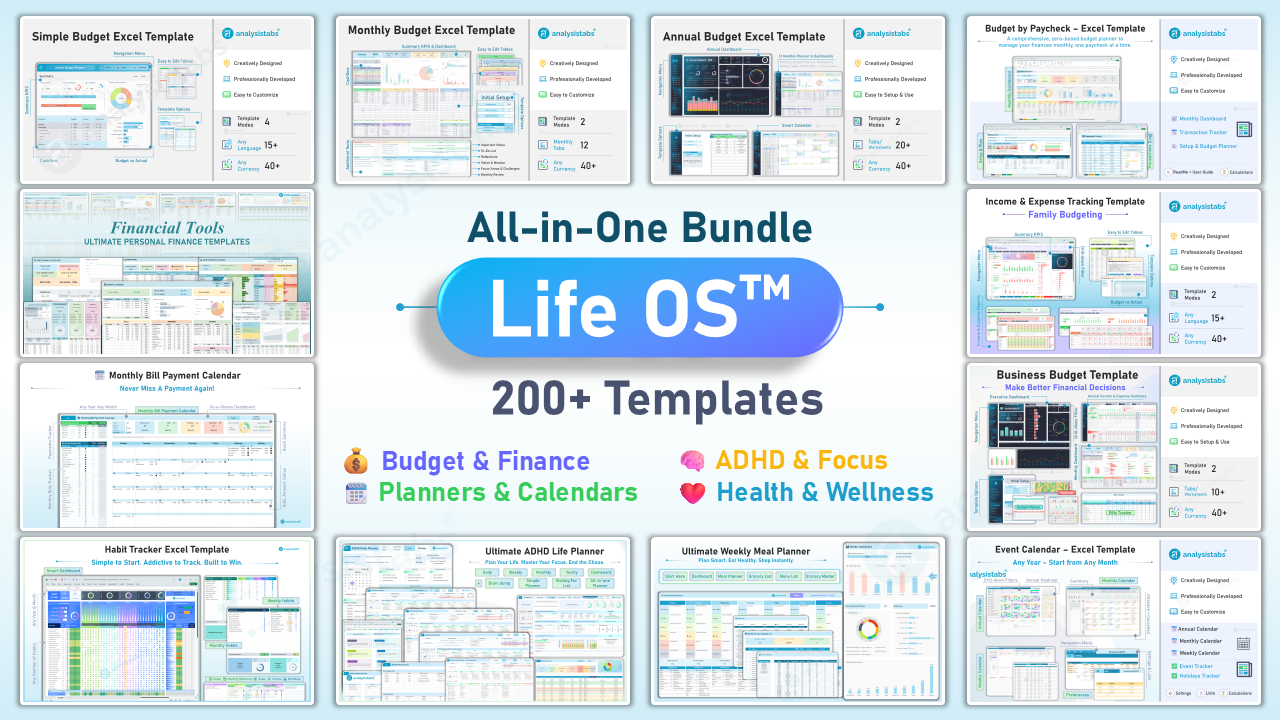
Got the budget covered? The Starter Pack adds every other budgeting method, the Ultimate templates go beyond budgeting into debt, savings and net worth, and Life OS is everything we make.


Questions before you buy
What does “Left to assign” mean?
Income minus everything you have allocated for the month. Zero means every unit of income has a job — that is the whole zero-based method. Green at 0, amber when money is still unassigned, red when you have over-assigned.
What happens to money I don’t spend?
It rolls into next month’s Carry-in for that category automatically. Over-spends carry as negatives, so the next month starts honest.
Can I rename categories or sections?
Yes. Type directly on the Year Planner; the Transactions dropdowns and both dashboards follow.
Does the year have to start in January?
No. Set the Start month in Setup and the twelve columns follow — a July start runs July to June.
What’s the difference between this and the Personal Budget Planner & Tracker?
The Planner & Tracker reports planned vs actual for any period. This template enforces the zero rule: Left to assign must reach zero every month, unspent money carries forward, and the dashboards are built around that check. If you follow YNAB or Dave Ramsey style budgeting, this is the one.
What’s the difference between the two files?
Sample Data is a filled 2026 example — a full-year plan with January–March transactions, so both dashboards show real numbers the moment you open them. Blank keeps starter categories with one example row per section and six example transactions.
Can I change the currency?
Yes. 49 currencies are built in, plus a Custom option to type your own symbol — and the dashboard wording follows the currency.
Does it connect to my bank?
No. It’s a plain Excel file — nothing leaves your computer and there are no accounts. Type transactions in, or paste them from a bank export into the Transactions table.
Does it work on a Mac or in Google Sheets?
Excel for Mac 2016 or later, yes. It is not tested in Google Sheets — the dependent dropdowns, carry-forward engine and view modes rely on Excel features.
Can I add more rows?
The Transactions sheet is an Excel Table — new rows are added automatically as you type. The Year Planner has spare category rows in every section.
Is it a one-off payment?
Yes. $19 once, keep it forever, free updates. No subscription.
Is it cheaper in a pack?
Yes. The Budget Starter Pack includes this template and six others for $49, and Life OS includes everything we make for $99. Buy this one first and contact us with your order number if you upgrade — we’ll credit it.